

Quick answer: to set up Claude Cowork in 1 hour, install the Claude desktop app on a paid plan, create one work folder with "About Me", "Projects", "Outputs" and "Templates" inside, let Claude interview you to write your context files, add global instructions, create your first project, choose a safe permission mode, connect only the apps you need, then give Claude one real task as a clear brief. The step-by-step plan below takes about 60 minutes.
Stop prompting, start directing. That is the whole idea behind Claude Cowork. Instead of typing one question at a time and copying answers around, you hand Claude a goal, the files and context it needs, and the rules to follow. Claude plans the work, does it across your files and apps, and checks in with you when it matters.
Most people never get there because they skip the setup. They open Claude, type a vague request, get a vague result and give up. This guide fixes that. In one hour you will build a Claude Cowork setup that knows who you are, how you work and what “done” looks like, so every task after today starts from a strong base.
What Is Claude Cowork in 2026?
Claude Cowork is the part of Claude that carries out multi-step tasks for you: reading and writing files, using connected apps, browsing, and running work in the background. It launched as a separate mode in January 2026. In September 2026, Anthropic began folding Cowork into the main Claude app, so on many accounts there is no separate Cowork switch any more. Claude simply decides whether your request needs a quick reply or a longer task.
So if you see Chat and Cowork options in the message box, choose Cowork. If you do not see them, you already have the new combined experience and every conversation can run a Cowork task. Everything in this guide works either way.
| You need | Details |
|---|---|
| A paid Claude plan | Pro, Max, Ultra, Team or Enterprise. On Team and Enterprise, an admin may need to switch Cowork on first. |
| The Claude desktop app | For working with files on your computer, the browser and computer use. Available for macOS and Windows, with Linux in beta. |
| An internet connection | Required for the whole session. |
| About 60 minutes | One focused hour, ideally with a real task you want done this week. |
New to Claude itself? Start with our guide What is Claude AI? and come back.
Stop Prompting, Start Directing: The Mindset Shift
A prompt asks for an answer. A direction hands over a job. The difference decides whether Claude Cowork saves you minutes or hours.
| Prompting | Directing |
|---|---|
| “Write a report on our sales.” | “Using the files in Outputs/Sales, write a one-page monthly sales report for my manager. Compare with last month, highlight the top 3 changes, save it as a Word file in Outputs.” |
| You copy and paste files in | Claude reads the folder you connected |
| You fix the format every time | Your instructions and templates set the format once |
| You check every step | You set check-in points and review the result |
A good director gives three things: the goal, the context and the guardrails. The one-hour setup below builds the context and guardrails once, so each future direction can be short.
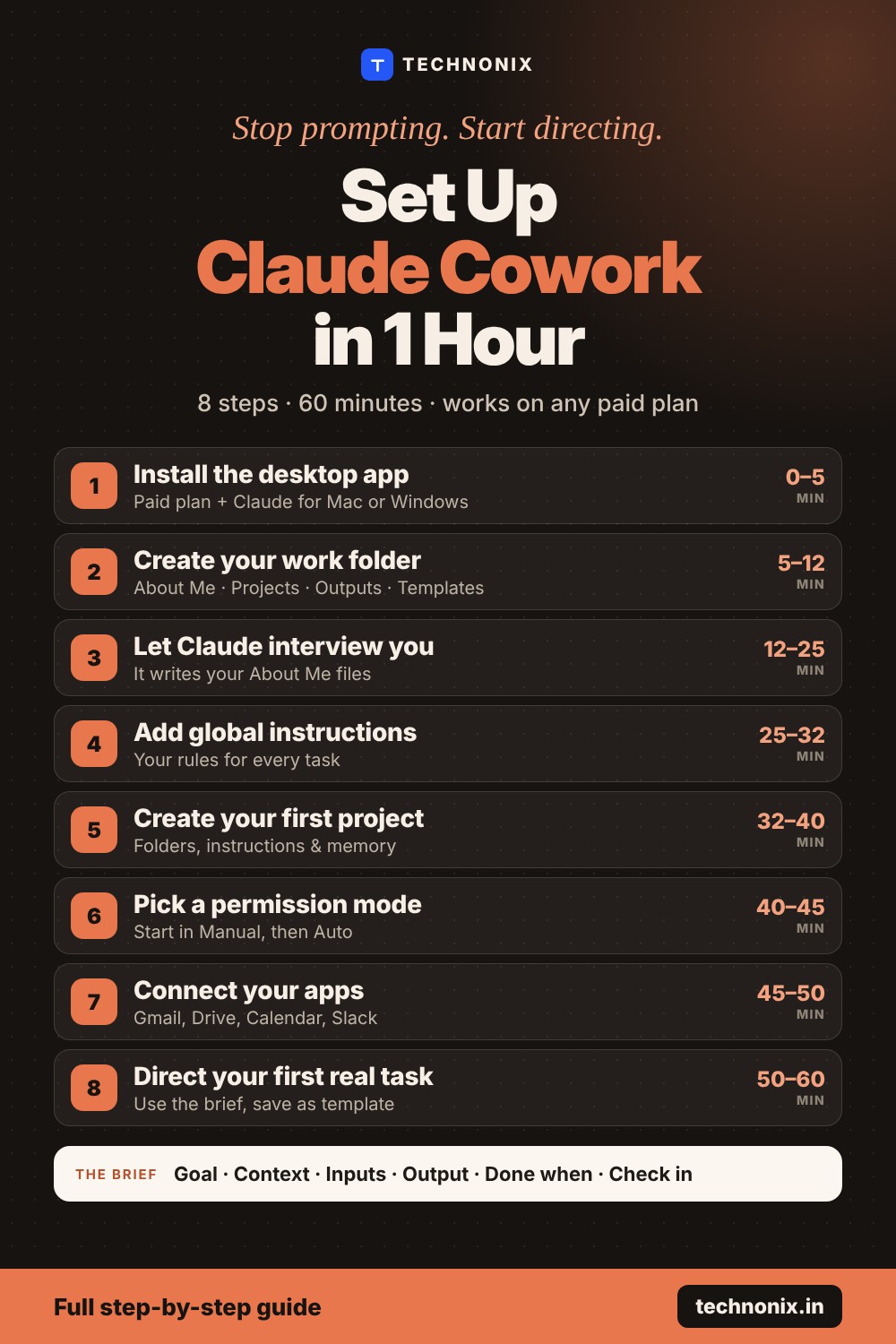
Claude Cowork Setup: The 1-Hour Plan
| Time | Step |
|---|---|
| 0 to 5 min | 1. Install the desktop app and sign in |
| 5 to 12 min | 2. Create your Cowork work folder |
| 12 to 25 min | 3. Let Claude interview you and write your About Me files |
| 25 to 32 min | 4. Add global instructions |
| 32 to 40 min | 5. Create your first project |
| 40 to 45 min | 6. Choose a permission mode |
| 45 to 50 min | 7. Connect only the apps you need |
| 50 to 60 min | 8. Direct your first real task and save it as a template |
Step 1 (5 minutes): Install the Desktop App and Sign In
- Download the Claude desktop app for Mac or Windows from claude.com and sign in with your paid account.
- Use the desktop app rather than the browser. Only the desktop app can work with folders on your computer.
- Open a new conversation and look at the message box. Pick Cowork if you see the option; if not, you already have the combined experience.
Step 2 (7 minutes): Create Your Cowork Work Folder
Claude Cowork cannot see any of your files until you connect a folder, which is good for privacy. Give it one tidy home instead of your whole drive. Create a folder called Claude Work with four folders inside:
| Folder | What goes in it |
|---|---|
| About Me | Short files about you, your work and your writing style. Claude reads these for context. |
| Projects | One subfolder per client or area of work, with the source files Claude needs. |
| Outputs | Where Claude saves finished work, so nothing gets mixed with your originals. |
| Templates | Saved briefs and formats that worked well, ready to reuse. |
The first time you ask Claude to work with files, it asks which folder to connect. Choose Claude Work. You can connect more folders later.
Step 3 (13 minutes): Let Claude Interview You
Writing about yourself is slow. Let Claude ask the questions and write the files for you. Start a task with the Claude Work folder connected and paste this:
Interview me so you can work well for me. Ask one question at a time and wait for my answer.
Cover: my role and daily work, my business or employer, my clients or audience, the tools I use, the tasks I repeat every week, how I like things written, and things you should never do.
After about 12 questions, write three files in the "About Me" folder:
1. about-me.md: who I am and what I do
2. my-work.md: my business, clients, tools and recurring tasks
3. writing-style.md: my tone, words I use and avoid, and formatting rules
Keep each file under one page. Show me a summary before saving.
Tip: Answer in your own words, even in short notes. Paste in two or three things you wrote recently (an email, a post) so Claude can match your style in writing-style.md.
Step 4 (7 minutes): Add Global Instructions
Global instructions apply to every session, so this is where you set the rules once. In the new combined experience, open Settings → Your Claude. On the older layout, open Settings → Cowork and click Edit next to Global instructions. Paste this and adjust it:
Before starting any task, read the files in my "About Me" folder.
Save finished work in "Outputs", never over my original files.
If my request is unclear, ask me up to 3 short questions before you start.
Show me your plan before any task that sends messages, changes many files, or takes more than a few steps.
Never delete files, send emails or make purchases without asking me first.
Write in simple, clear English and follow writing-style.md.
When you finish, give me a 3-line summary: what you did, where the files are, and what needs my review.
Step 5 (8 minutes): Create Your First Project
A project bundles the folders, instructions, links and memory for one area of work, so Claude starts each session already set up. Open Projects in the left sidebar, choose +, then Use an existing folder and pick one subfolder in Claude Work/Projects (for example your main client).
- Description: one line on what the project is for.
- Instructions: rules for this area only, such as the client’s brand tone or report format.
- Links: documents or dashboards Claude should consult.
- Memory: fills itself. What Claude learns in the project is remembered for next time.
Good to know: Cowork projects live on your computer and are not synced or shared. They are separate from projects on claude.ai, but you can link a claude.ai project so Cowork can use its knowledge.
Step 6 (5 minutes): Choose a Permission Mode
Permission modes decide how much Claude does before checking with you. Change them from the mode selector in the message box.
| Mode | What it does | Use it for |
|---|---|---|
| Manual | Asks you to allow or deny each action | Your first week, and anything involving money, sent messages or important files |
| Auto | Reviews each action for safety and blocks unsafe ones (the default on Pro, Max, Ultra and Team) | Routine tasks you have already checked once |
| Skip | No pauses or checks | Only small tasks you fully trust, never with sensitive files |
Even so, Claude asks for permission before permanently deleting files. Start in Manual for a few days to see how Claude works, then move familiar tasks to Auto.
Step 7 (5 minutes): Connect Only the Apps You Need
Connectors let Claude use apps such as Gmail, Google Drive, Google Calendar and Slack. Add them from the + menu in the message box or under Customize → Connectors.
- Connect two or three apps you use daily, not everything at once.
- For each connector tool, set permission to Needs approval for anything that sends or deletes, and Always allow only for reading.
- Remove connectors you stop using.
Step 8 (10 minutes): Direct Your First Real Task
Skip the test prompts. Pick a real task you would otherwise do yourself this week. Use this brief, which is “stop prompting, start directing” in practice:
GOAL: [what you want finished, in one sentence]
CONTEXT: [who it is for and why it matters]
INPUTS: [which folder, files, apps or links to use]
OUTPUT: [format, length, file type, and where to save it]
DONE WHEN: [how you will judge it is right]
CHECK IN: [when Claude should stop and ask you]
For example: “GOAL: turn the PDFs in Projects/Acme into a one-page client brief. CONTEXT: kick-off meeting with Acme on Monday. INPUTS: Projects/Acme. OUTPUT: Word file in Outputs, headings and bullet points. DONE WHEN: covers goals, budget, deadlines and open questions. CHECK IN: show me the outline first.”
When the result is good, finish with: “Save this brief as a reusable template in the Templates folder.” Next time you only change the details. For repeating work, type /schedule in a task (or click Scheduled in the sidebar) to run it automatically, for example every Monday morning. Scheduled tasks run in the cloud, so your computer does not need to be on.
5 Claude Cowork Tasks to Direct This Week
Copy these once your setup is done. Each one uses your folders and instructions, so they stay short.
1. Weekly status report
Read the files changed this week in Projects/[name] and my calendar for the last 7 days. Write a one-page weekly status report for [manager or client]: done, in progress, blocked, next week. Save it in Outputs as a Word file.
2. Inbox triage
Go through my unread Gmail from the last 2 days. Group emails into: needs my reply today, can wait, newsletters, and ignore. Draft short replies for the first group but do not send anything. Show me the list.
3. Folder of PDFs to a brief
Read every PDF in Projects/[name]/research. Write a 2-page brief with key findings, numbers with their sources, and 5 open questions. Save it in Outputs.
4. Content calendar
Using my-work.md and writing-style.md, plan 12 social media posts for next month for [business]. Put them in a spreadsheet with date, platform, topic, caption draft and image idea. Save it in Outputs.
5. Clean up a messy spreadsheet
Open [file] in Projects/[name]. Remove duplicates, fix date and number formats, add a summary sheet with totals by month and one chart. Save a cleaned copy in Outputs and leave the original unchanged.
Want ready-made prompts for client work? See 10 Free Claude Prompts for Web Design.
Tips to Save Usage and Get Better Results
- Group related work into one task. Multi-step tasks use more of your plan’s usage than quick questions.
- Start a new conversation for unrelated work so Claude does not carry unnecessary context.
- Say when you only need a quick answer. Claude will not start a long task.
- Check your usage under Settings → Usage.
- Keep About Me up to date. When something changes in your work, ask Claude to update the files. Better context means better results.
- Pick the model for the job. Use the most capable model for complex, multi-step work and a faster one for short everyday tasks.
Stay Safe While Claude Works for You
- Connect only the folders Claude needs. Keep personal and financial documents elsewhere.
- Review Claude’s plan before you approve it, especially with sensitive files.
- Use Manual mode for anything involving money, messages sent in your name or important files.
- Keep the desktop app open for tasks that use local files, the browser or your computer. Cloud tasks keep running when it is closed.
- Be careful with web pages and documents from unknown sources. Agentic tools can be targeted by hidden instructions in content, so watch what Claude does with them.
Common Claude Cowork Setup Mistakes
- Connecting your whole drive. One clean work folder is safer and gives better results.
- Skipping the About Me files. Without context, you are back to prompting.
- Testing with toy tasks. One real task teaches you more than ten demos.
- Starting in Skip mode. Build trust in Manual first.
- Never saving templates. Every good brief you save makes the next task faster.
Frequently Asked Questions
Is Claude Cowork free?
No. Claude Cowork needs a paid plan: Pro, Max, Ultra, Team or Enterprise. Since the September 2026 merge, Free users are set to get the combined Claude experience later, so check claude.com for the current plan details.
Has Claude Cowork been discontinued?
No. Cowork has been merged into the main Claude app rather than removed. If you no longer see a separate Cowork option, your conversations can run Cowork tasks directly.
Do I need the desktop app for Claude Cowork?
You need the desktop app for working with files on your computer, the browser and computer use. Cloud tasks, including scheduled tasks, can also run from the web and mobile apps.
Where are global instructions in Claude Cowork?
In the new combined experience they are under Settings → Your Claude. On the older layout, go to Settings → Cowork and click Edit next to Global instructions.
Can Claude Cowork delete my files?
Claude can only access folders you connect, and it must ask for your permission before permanently deleting a file. Keep originals safe by telling Claude to save finished work in a separate Outputs folder.
How long does Claude Cowork setup take?
About one hour with the plan in this guide. Updating your About Me files and saving templates over the next few weeks makes Claude more useful over time.
Stop Prompting. Start Directing.
Block one hour this week, follow the 8 steps, and give Claude Cowork its first real job. Then explore more AI tools that fit the way you work.
Explore the AI Tools directory →
Not sure which plan or tool to pay for? Read How to Choose the Right AI Tool.
Last reviewed November 2026. Setup steps and menu names are based on Claude’s official Cowork help article and Cowork projects guide, and may change as Anthropic updates the app.



Leave a comment